

Use with SharpCap
SharpCap runs ASTAP as a command-line program for its plate solving, for example to sync the mount or re-centre a target. arcsec accepts the same command line and writes the same files, so SharpCap can run it in ASTAP’s place. SharpCap lets you choose the program it runs and add your own options to its command line, which is all the set-up needs.
Setting up
Section titled “Setting up”-
Install arcsec. Download the Windows
.zipfrom the latest release, extract it and putarcsec.exein a permanent folder, for exampleC:\Program Files\arcsec\. Getting started has the details. -
Have a star catalogue for your field of view. Either:
-
Reuse ASTAP’s databases. If ASTAP is installed with its star databases, arcsec can read them where they are. They are in
C:\Program Files\astapfor a default install. You will give arcsec this folder in step 4. -
Install one with arcsec. Use Which catalogue do I need?, or in PowerShell:
Terminal window arcsec catalog recommend --fov 1.2 # your field height in degreesarcsec catalog install d50 # what it recommendedarcsec finds catalogues it installed itself, so step 4 needs no extra options.
-
-
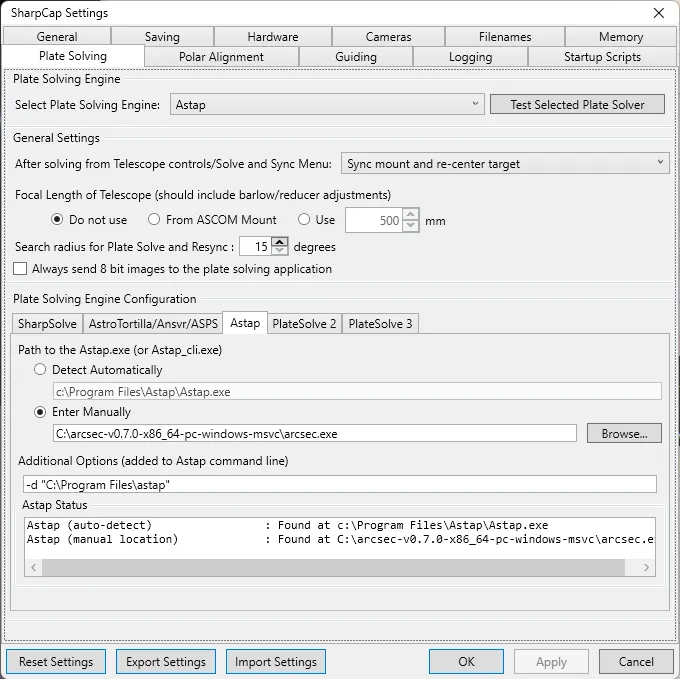
Point SharpCap at arcsec. Open File > SharpCap Settings > Plate Solving. Set Select Plate Solving Engine to Astap. In Plate Solving Engine Configuration, on the Astap tab, choose Enter Manually and enter the full path of
arcsec.exe, for example:C:\Program Files\arcsec\arcsec.exeType or paste the path into the field. The Browse… button only shows files named
astap.exe, so it cannot selectarcsec.exe. -
Tell arcsec where ASTAP’s catalogue is, if you are reusing it. In Additional Options (added to Astap command line) enter:
-d "C:\Program Files\astap"Leave the field empty if you installed the catalogue with arcsec.
-
Check the status. The Astap Status box at the bottom should show
Found atand the path toarcsec.exeon the manual location line. Click OK, then plate solve from SharpCap as usual.
These settings worked, using ASTAP’s star databases:
The other settings
Section titled “The other settings”- Focal Length of Telescope. This is optional. arcsec works out the image scale from the image when SharpCap sends none. If you do set it, include any Barlow or reducer, because a wrong value makes solves fail.
- Search radius. This sets how far from the mount’s reported position arcsec looks, in degrees. SharpCap’s default of 15 is fine. A search this wide is quick with arcsec’s blind index.
- Always send 8 bit images to the plate solving application. Leave this unticked. An 8-bit copy loses the faint stars that solving needs.
The blind index, for wide searches
Section titled “The blind index, for wide searches”When the mount’s reported position could be far off, arcsec’s
blind index finds the field in a second or two
instead of searching the sky field by field. arcsec catalog install builds it when
it installs a catalogue. For ASTAP’s databases, build it once yourself. ASTAP’s folder
under Program Files can only be written by an administrator, so run this from a
PowerShell opened with Run as administrator:
arcsec catalog index build --dir "C:\Program Files\astap"It takes about half a minute and adds one file to the folder, about 290 MB for D50.
ASTAP ignores that file. arcsec finds the index next to the database that -d names.
Troubleshooting
Section titled “Troubleshooting”See exactly what SharpCap ran
Section titled “See exactly what SharpCap ran”SharpCap’s log records the full command line for each solve, on a line starting
Running external command. The .ini file arcsec writes next to the image records it
too, on the CMDLINE= line. Paste that command into Command Prompt or PowerShell and add
--progress to watch each step:
"C:\Program Files\arcsec\arcsec.exe" -f "C:\...\image.fits" -ra 20.979 -spd 133.530 -r 15 -z 0 -d "C:\Program Files\astap" --progress& "C:\Program Files\arcsec\arcsec.exe" -f "C:\...\image.fits" -ra 20.979 -spd 133.530 -r 15 -z 0 -d "C:\Program Files\astap" --progressThe exit code tells you why a solve failed. Run echo %ERRORLEVEL% (Command Prompt) or
$LASTEXITCODE (PowerShell) straight afterwards and look it up in the exit code table. 2 means too
few stars were detected, and 32 means no star database was found.
“Star database not found” (exit code 32)
Section titled ““Star database not found” (exit code 32)”arcsec found no star database. If you are reusing ASTAP’s folder, check that the path
in Additional Options is in quotes and names the folder that holds the d50_*
(or d80_*, …) files. Otherwise run arcsec catalog list to see which folder arcsec
uses and what is installed there.
It fails on images that should solve
Section titled “It fails on images that should solve”- If you set a focal length, check it, including any Barlow or reducer.
- Untick Always send 8 bit images to the plate solving application.
- Check the catalogue covers your field: see Which catalogue do I need?.
If a solve still fails, please
open an issue with the command line, the
.ini file and, if you can share it, the image.